GUIDE
How to share a Gadgetbridge workout to your Instagram story
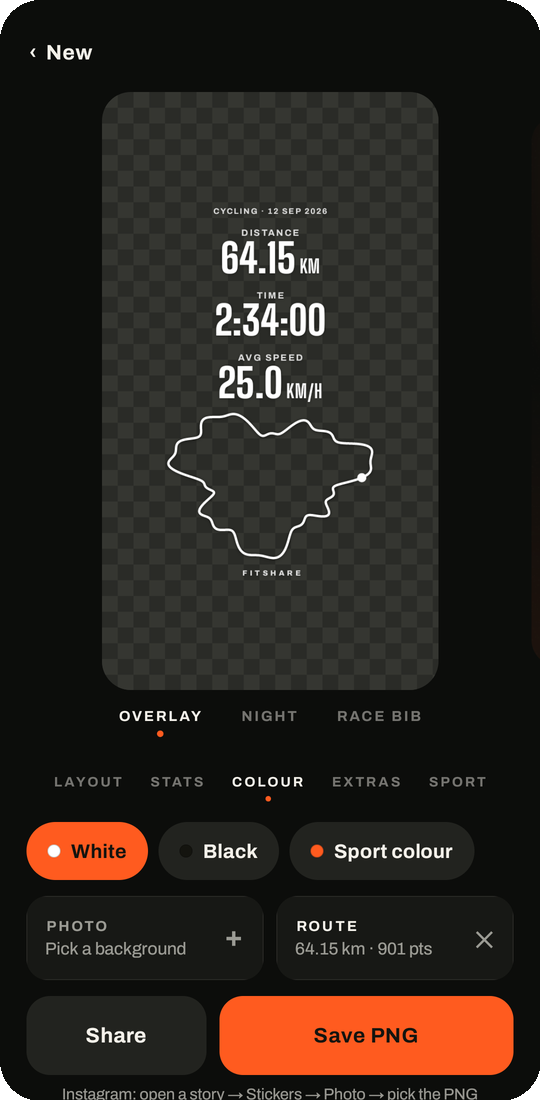
Gadgetbridge keeps your workouts on your phone and has no Instagram button. Share the workout's FIT file to FitShare, and you get a transparent sticker with your stats and route to place on any story photo.
- In Gadgetbridge, open the workout and tap ⋮ → Share FIT File.
- Pick FitShare in the share sheet.
- No GPS in the file? Share the route from OpenTracks (KMZ or GPX) to FitShare too.
- Choose a layout, the stats and a colour, then tap Save PNG.
- In Instagram, open a story, tap Stickers → Photo and pick the PNG.
Tips
- Save your favourite setup under Looks. Next time you share a workout, one tap gives it the same design.
- Turn on Km splits for rides and runs with GPS: one bar per kilometre, fastest marked.
- Posting to the feed instead of a story? Use the Night or Race bib design in 4:5.
Download the APKOpen in the browser
The APK needs Android 8.0 or newer and no account. It fetches its own updates from GitHub. The web app runs on iPhone, Android and desktop with nothing to install; pictures and files never leave the device.
Questions
Where is the share button in Gadgetbridge?
Open the workout from the activity list, then tap the three-dot menu in the top right. Share FIT File sends the whole workout; Share JSON Details works too but has no sport and no heart rate curve.
FitShare doesn't show up in the share sheet
Update FitShare to 1.5.0 or newer. Older versions only accepted JSON, and Gadgetbridge shares FIT files as a generic binary file.
My sticker has no map
Watches without GPS, like most Mi Bands, only record heart rate. Record the route on the phone with OpenTracks and share the KMZ or GPX to FitShare as well; it joins the open workout.